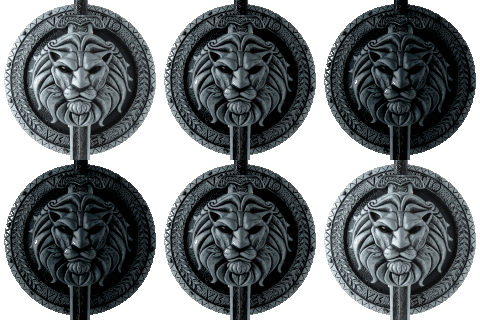
Perfect all-around protection, but watch out for slow blades! :>
Note: The video is just an example how the effect might look. Final result and interactions will depend on your setup!
Shield is reactive to other players and can be audiolinked.
Should work on most avatars with necessary edits.
What do you need:
Includes:
This asset adds to your avatar:
Found any bugs or ways to improve this? You can contact me on Discord - roborycerz
This is just an example setup and may differ depending on your avatar and your setup in unity
If your avatar has multiple meshes you need to set up the material order on all of them
You may need to edit the animator accordingly to your avatar too
Overlook
Check the material setup on your avatar mesh (usually named as 'Body'). If it has a single material/the base body material is already at the bottom by default you can skip to the step 3

Changing material order in Blender:
a) Open your avatar .blend file or import the .fbx via File > Import > FBX in the dropdown menu
b) Select the body mesh and go to the Material Properties menu:

c) Select the target material on the list and move it to the bottom using arrows on the right side

d) Back to the scene, make sure the mesh is still selected - press 'TAB' key to enter the edit mode and then press 'A' key to select everything. Now from the scene dropdown select the option as shown below:

e) Small window will show up in bottom left corner, expand it and change the selection to 'Faces':

Now you can press 'TAB' key again to exit the edit mode
f) On the scene select all parts of the avatar you want to export and then go to File > Export > FBX. In the export window the shown below settings should usually work the best, but may differ depending on the avatar. Export the FBX

g) Import the .fbx to Unity or swap it with the original file in the project folder
Unity setup:
a) Import the Poiyomi Shader (https://github.com/poiyomi/PoiyomiToonShader/releases) first and then my example package
Changelog:
(v1.1) Fixed animator transitions and replaced the corrupted parameter in the example package
(v1.2) Readded lost animation clips in the example package
b) Add an extra material slot to the mesh

c) Drag the ShieldMaterialPreset into the new slot
d) Drag the ReactiveShield prefab into main root of the avatar

e) Set the appropriate parents of the contacts in the prefab and adjust their size to your avatar
f) Copy the contents of the Shield Animator into your FX Animator (I recommend using Avatars 3.0 Manager to merge them)
g) Copy the parameters of the ShieldParam to your avatar expression parameters (I recommend using Avatars 3.0 Manager too)
Material masks:
To have designated reactive areas you need to make black & white masks for each part of the body. These textures can be very low resolution - even 128x128 looked fine for me as you can see in the video :>
Animation assignment in my example setup:
Emission 1 Mask - Body (Chest & Belly area)
Emission 2 Mask - Head
Emission 3 Mask - Left arm
Decal 0 - Left leg
Decal 1 - Right arm
Decal 2 - Right leg
Decal 3 - Empty
Extra: I recommend using an Alpha Mask for areas of the body that you don't want be affected by the shield, like inside of the mouth and/or eyeballs
Unlock the shader and put the textures in designated spot.
Menu button:
If you wish to add a shield toggle in the expression menu, add 'Button' bool to your expression parameters and put the button type control in your menu. Single trigger will toggle the shield on and off.
Now it is done and you can upload your avatar! :)
Questions? Any issues of feedback you have? You can contact me on discord - roborycerz