Integration with XSOverlay, OVR Toolkit and WlxOverlay-S directly into your VRChat via OSC.
Open your overlay and bring a different experience to yourself and everyone around you. Completely futuristic and easily customizable and with a toggle to deactivate whenever you want.
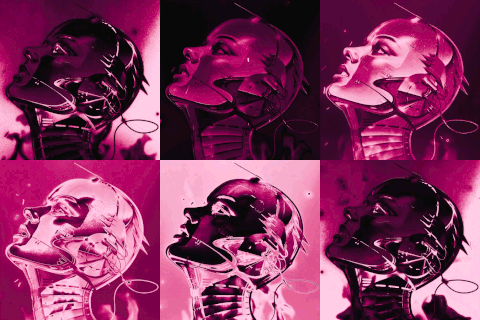
6 terrifying screens & 1 haunted Keyboard
Make your Halloween 2024 spookier than ever with this DXOverlay Overlays!
With 3 different screen prefabs, customization is incredibly easy.
The project includes custom monitor shader that allows for easy color changes and PSDs for modifying the desktop,keyboard and clock textures.
On top of that prefab allows for effortless addition or alteration of monitors, even including a horizontal monitor.
If you have any questions, just join my discord and ask me, I'll be more than happy to clarify your doubts.
DiscordDon't forget to leave a review
If you need support or have a suggestions you can join my Discord group
Update your SDK to the latest version
Add VRCfury to VCC using the link below and import into your project
Add VRCFury into your project.
Import the DXOverlay.unitypackage into your project.
Navigate to the folder _DX > DXOverlay.
Drop the DXOverlay V2 Scene into the hierarchy.
Choose the Overlay you want to use
Drag it to your scene
Click on the three dots next to the DXoverlay v2 scene
Click Remove Scene and then Don't Save
select the chosen overlay and reset the position to 0 0 0
Drag Prefab into your avatar.
Use GameObject Clock to position the clock on your wrist and change the scale to match your avatar.
To put it on your right wrist, simply drag the watch onto your right wrist.

Use GameObject Screen to position the screens in front of your avatar's face, in the same place your Overlay normally opens and change the scale to match your Overlay size.

Upload Your Avatar.
On VRChat select the avatar you just uploaded
Open the Radial Menu.
go to Options > OSC.
Make sure it is Enable and also Reset Config
Done
When importing, make sure to uncheck the Materials and Textures you edited.

Use GameObject Clock and GameObject Screen to change position and scale.

To change the color of the Screen go to the folder _DX > DXOverlay > Assets > Material.

You can find the PSDs in the folder _DX > DXOverlay > Assets > Texture.
To change the screens or add more you must do this in DXOverlay 2.0 > Armature >World Rotation > HipRotation> HeadClone > Monitors > Anchor.

Addition of 9 more Overlays, now having a total of 12
Optimization, now having just 1 Skinned Mesh Renderer and 1 Material
Clock now shows real time (only in worlds with audio link)
Audiolink Support
Animation when muting to activate the earmuffer added
Curved Monitor support added
Parallax support
Adding a Toggle to disable the overlay on your view
Easy customization
Adding more application icons to screens PSDs
Drawing App Screen Added
2 Ultra wide screens added
Automatic aspect adjustment system added
VRC Package Verificator by ikeiwa to help verify that the project has the correct version of VRChat SDK and VRCFury
Addition of scripts that help with installation, with the system of attaching the Clock to the correct hand based on position.
Addition of 6 Screen and 1 Keyboard Halloween Themed
Convert Constraints to the new VRC Constraints
Add Discord Texture For monitors, made by Nyuchi
Now the Keyboard is shown correctly to other people
Textures now have the correct configuration respecting aspect ratio
Now when you open the Overlay while walking and then stop, the Overlay will stop in the expected position
The overlay will appear in the correct position for latejoiners
Typo fix
Screen shader will look right if someone blocks the shader.
Parameter optimization, from 4 to 3
Logic re-done to accommodate any future overlay
Restructured PSD
Right hand Support for the Clock
Folders Reorganization