McMeddons Discord Splitted Into Patreon Only & Public
Added 2021-08-29 10:42:29 +0000 UTCPatreon Discord: Join via Patreon
Public Discord: discord.mcmeddon.com
Good day everybody,
I have now decided to split the Patreon discord from the public. The main reason for this is to give a safe space for you, the Patreons. And host a public discord aside. Both discords will be well managed and receive love and events from me in the future :>
Wait You have a Discord?! What is the Discord good for?
- Getting direct help from McMeddon or the community directly in regard to the maps or your projects
- Get directly notified when a new project is released
- Be part of upcoming projects and events
- Share your ideas for future maps
- Share your builds with other Patreons
Original Article: https://support.patreon.com/hc/en-us/articles/212052266-Get-my-Discord-role
How do I get my Discord role when I become a patron?
- Hooray, you’ve become a patron of a McMeddon who offers access to a Discord server where you can interact with their community. The first thing you'll need to do is connect your Discord account to your Patreon account.
Follow the steps below to connect Discord to your Patreon account: - Step 1: Make sure you’re in the right Tier. If you made a “custom pledge,” instead of joining a Tier, you’ll not be assigned any Discord roles.
- Step 2: After you confirm your payment amount, and Tier selection, you’ll be taken to your creator’s Welcome note. You can get started by clicking the Connect to Discord button.
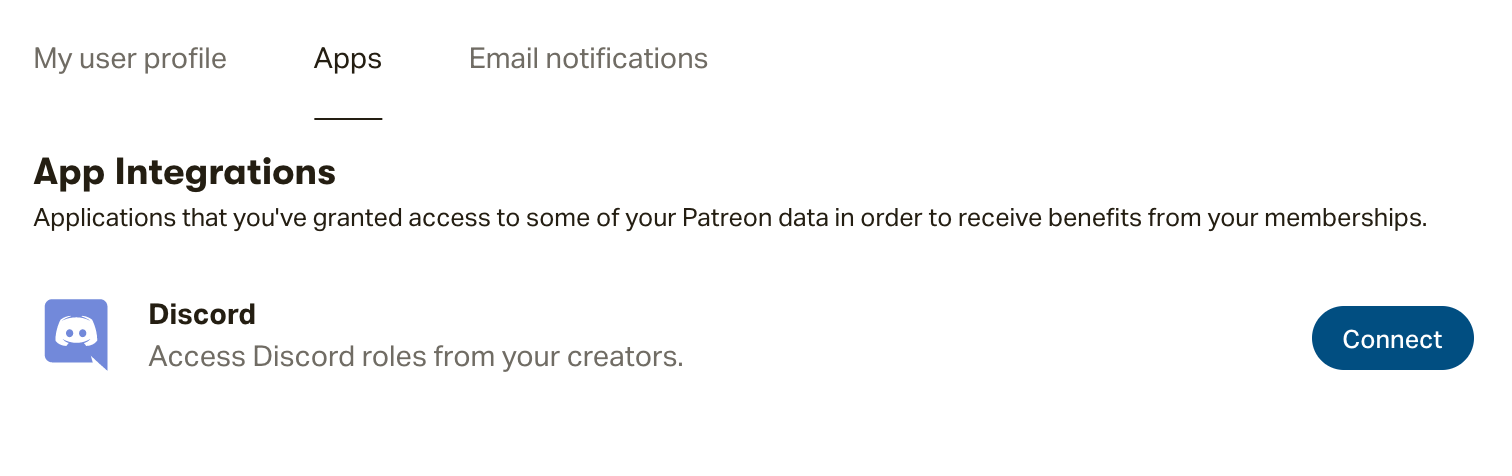
- Step 3: You'll be taken to the App section of your Profile settings page – click the Connect button to the right of the Discord app. Log in to your Discord account in the pop-up window that populates.
Don’t have a Discord account yet?
Select the option to Register in the pop-up window that shows, and follow the prompts.
- Step 4: Now that your Patreon and Discord accounts are communicating, our integration will assign you the role tied to your Tier!
You can access your new role by logging in to your Discord account.
Accessing your Discord role from the email we sent you?
Click the Connect to Discord button in that email, and go through the steps above, starting on Step 2.
My creator just added Discord as a benefit — how do I get my Discord role?
If your creator is introducing Discord roles as a new benefit, don’t worry, as an existing patron, the new benefit will be extended to you.When a creator announces that they’ve included Discord as a new benefit for patrons in your Tier, follow the steps below to access your role:
- Step 1: Log in to your Patreon account, and head to the Apps tab of your Profile settings page.
- Step 2: Click on the Connect button next to the Discord app.
- Step 3: Now that your Patreon and Discord accounts are communicating, our integration will assign you the role tied to your Tier!You can access your new role by logging in to your Discord account.
Note: Already have Discord connected to your Patreon account for another membership? Then there's nothing you need to do! You should find the server for the creator who's now offering Discord populate when you next log in to Discord.I need more assistance receiving access to my Discord role
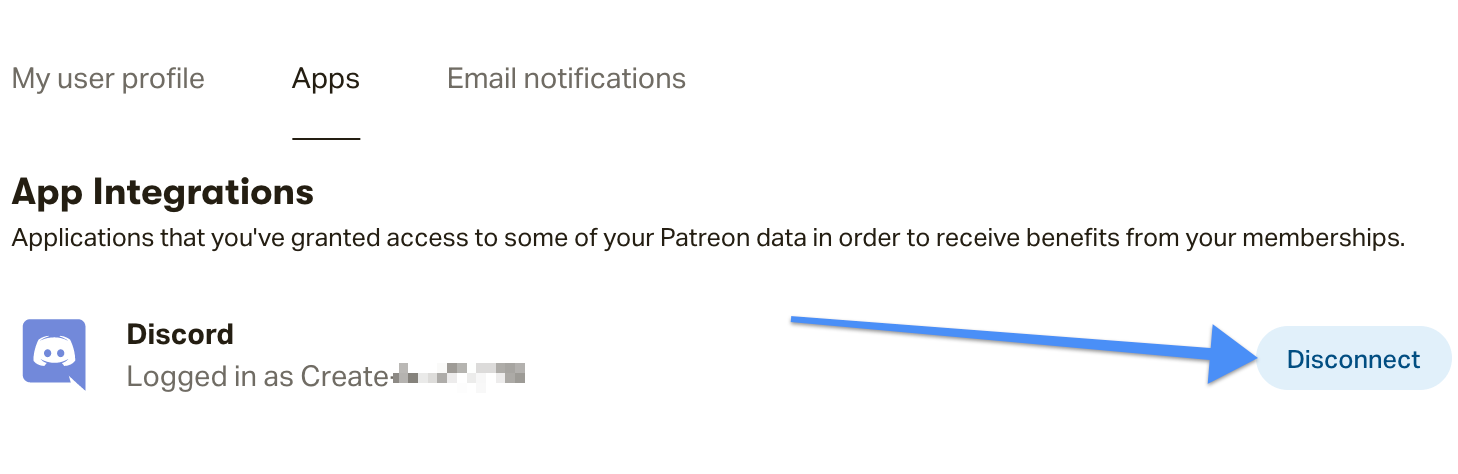
If it’s been a few hours and you still don’t have access to a creator’s Discord server, then there are a few troubleshooting steps you can try that should get everything up and running. - Step 1: Disconnect your Discord and Patreon account. You can do this from your Patreon Profile settings page where you’ll find the option to disconnect your Discord and Patreon account by clicking on the Disconnect button.
- Step 2: Log out of Discord. For help logging out of Discord, find Discord's article on how to logout.
- Step 3: Head back to your Profile settings page and click on the Connect button next to Discord.
- Step 4: Log back into your Discord account – you should now have your correct role.If you still don't have access to the Discord role tied to your Tier:If you have followed these steps and still don't have access, there may be an issue with how the creator has set up their Discord Bot.We recommend reaching out to the creator, to ensure their Patreon Bot is above the roles in their Discord server.
- FAQ
- Q: I connected my Discord account to Patreon, but I don’t find my creator’s server when I log in to Discord. What should I do?
A: If you’ve connected your Patreon account to your Profile settings page, we recommend disconnecting and reconnecting Discord from this page. Before disconnecting, log out of Discord completely on your device. Reconnecting will reestablish communication between the two apps.If you’re still not finding your creator's server, check that you’re in the correct Tier for your creator. If you became their patron with the custom pledge option, rather than selecting a specific Tier, you’ll not be assigned a Discord role, regardless of the amount you’re paying.This section of our help center guide on unlocking posts will help you check which Tier you’re in:Check that you’re in the tier that unlocks that benefits - Q: How do I know if my creator offers Discord as a benefit for my Tier?
A: Check out their Tiers, and keep an eye out for the Discord logo followed by the text: Includes Discord rewards at the bottom of the tier description. - Q: I don’t think I have the correct role? I can’t remember what role comes with my Tier?
A: If you know that your creator offers Discord, but think that you may be assigned the wrong role on their Discord server, there a couple of things you can do to double check:Head to the Active memberships tab of your Manage memberships page. Under the Membership column, click on the more button to check if your creator added the Discord role name to the Tier description.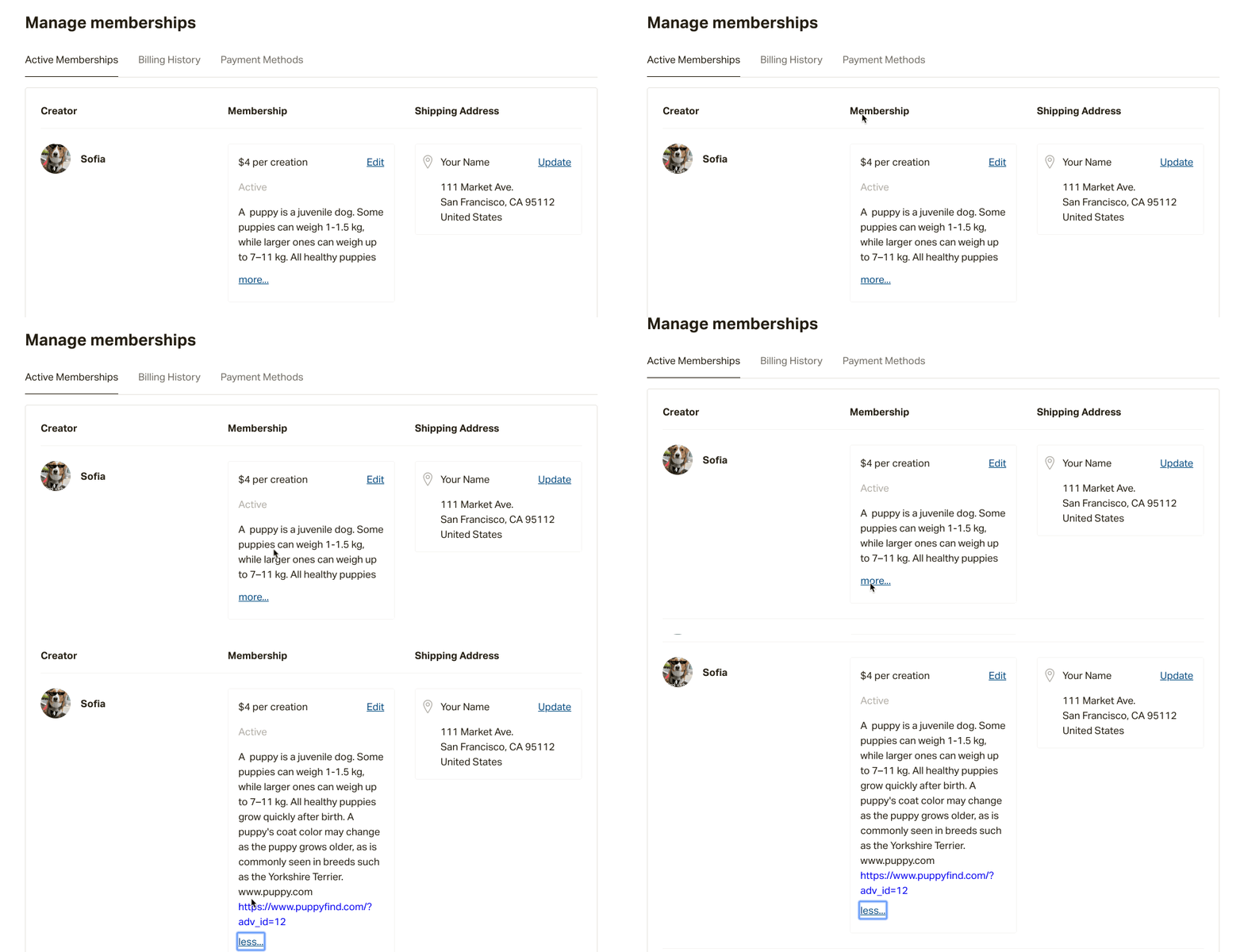 If you don’t find your Discord role, send your creator a message — they’ll know which role you should be assigned. Get to know how to message your creator.
 - Q: I don’t have access to my creator’s Discord server, what should I do?
A: Disconnect and reconnect your Discord account from the Apps tab of your profile settings page